






Job Centre and Invoicing
Copy Invoice With Attachments
This guide shows you how to copy an invoice along with its attachments in Workshop Software. This is useful when you need to duplicate a job with all its associated documents.
Step 1: Open the Invoice
- Open the invoice you wish to copy.
Step 2: Open the Action Menu
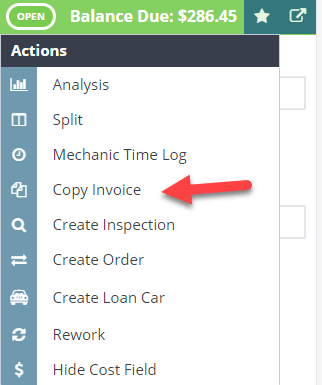
- Click the action star icon on the invoice.
- Select Copy Invoice from the menu.
 3. Select Copy Invoice
Step 3: Confirm Invoice Copy
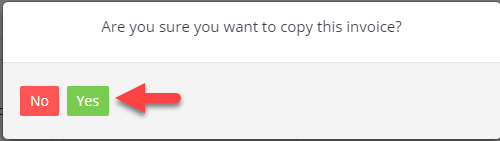
- When prompted whether you want to copy the invoice, select Yes.
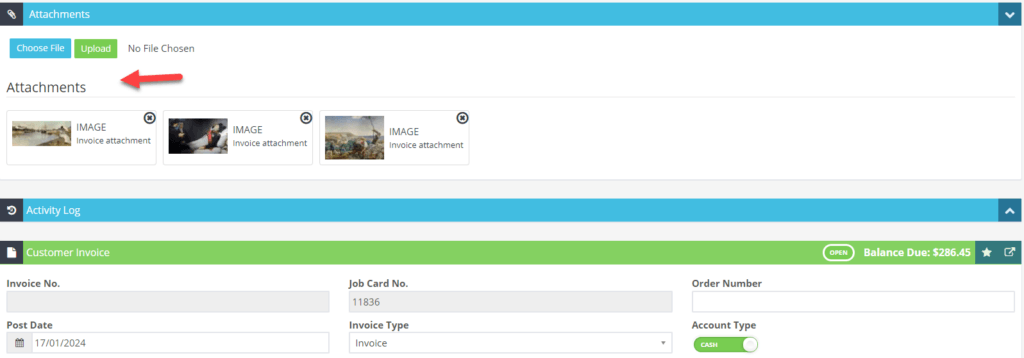
Step 4: Copy Attachments
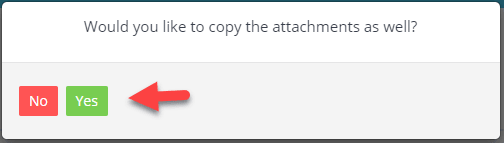
- When prompted whether you want to copy the attachments as well, select Yes.
Step 5: Save the Copied Invoice
- Click Save to save the copied invoice with its attachments.
Good to Know
- Make sure you click Save after the copy is complete. If you navigate away before saving, your changes will be lost.
- The copied invoice will be a new, separate invoice — changes to the copy will not affect the original.
- All attachments from the original invoice will be duplicated onto the new invoice.
Frequently Asked Questions
Can I undo the copy?
You can update or delete the copied invoice. If the original invoice has already been finalised, you may need to create a credit note to reverse any changes.
Will the copied invoice have the same invoice number?
No, the copied invoice will be assigned a new invoice number automatically.