







How to run a vehicle listing report
The run a vehicle listing report in Workshop Software helps you review and analyse your run a vehicle listing data in one place. Running this report gives you a clear snapshot that you can use for business decisions, record keeping, or end-of-period reviews. Follow the steps below to run this report from the Reports section.
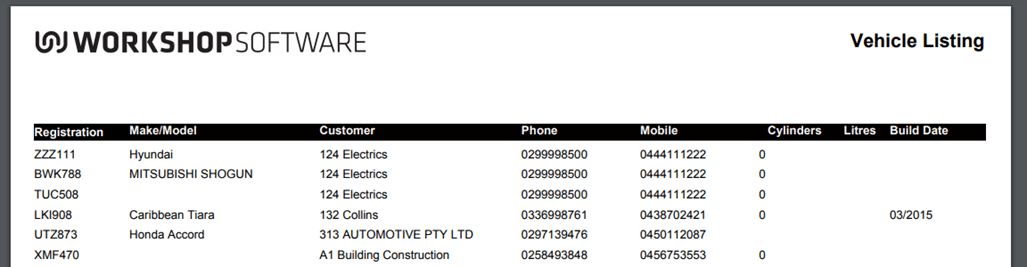
You are able to generate a list of the vehicles in Workshop Software and can filter the list by customer name, vehicle make or vehicle rego. The listing will show;
-
- Vehicle rego
-
- Vehicle make/model
-
- Customer name
-
- Customer phone
-
- Customer mobile
-
- Vehicle cylinders
-
- Vehicle litres
-
- Vehicle build date
1. To run the report, click on ‘Reports’ from the menu options on the left hand side and then click on ‘Business Reports’; 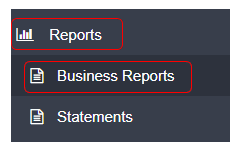 2. Click on the down arrow icon to the far right of the blue 2. Click on the down arrow icon to the far right of the blue Workshop Reports menu to expand the menu; menu to expand the menu;
  Filter by Customer Name Will generate in alphabetical order by customer name
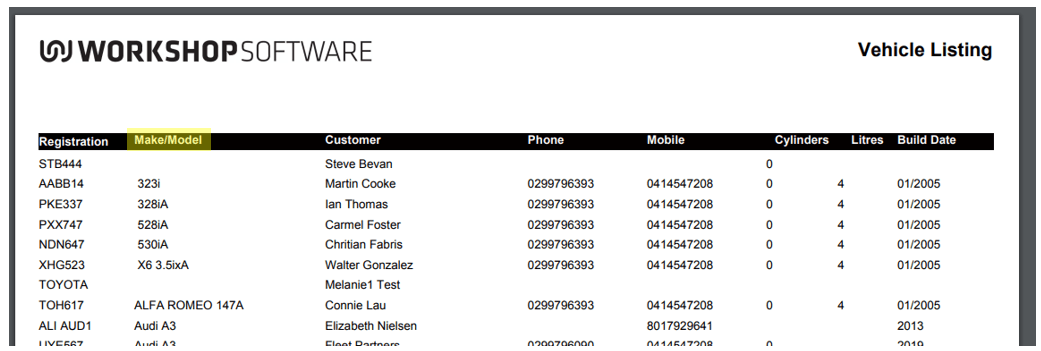
  Filter by Vehicle Make Will generate in alphabetical/numerical order by Vehicle Make/Model
  Filter by Rego Will generate in alphabetical/numerical order by Vehicle Rego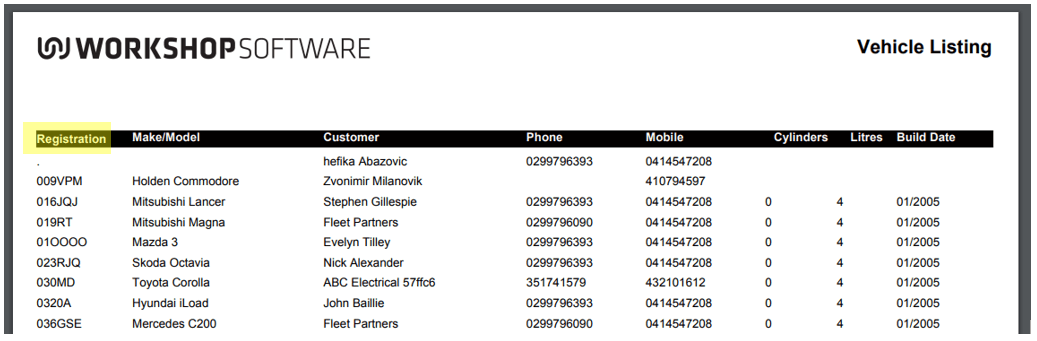
Good to Know
- Use the date filters to narrow the report to a specific period. This is useful for monthly or quarterly reviews.
- Once the report is generated, you can review the results on screen or use your browser’s print function to save a copy.
- This feature is also available on the Workshop Software mobile app if you have mobile access enabled on your account.
Frequently Asked Questions
Can I filter the run a vehicle listing report by date range?
Yes. Use the date range fields at the top of the report to specify the period you want to review. This lets you narrow results to a specific week, month, or custom date range.
Can I export or print this report?
You can use your browser’s built-in print function to print the report or save it as a PDF. Open the report, press Ctrl+P (or Cmd+P on Mac), and choose your printer or select Save as PDF.