







Job Centre and Invoicing
SMS Job Cards and Invoices
Workshop Software lets you send invoices, job cards, quotes, and credits directly to your customer’s mobile phone via SMS. This guide covers how to set up and use the SMS feature.
Step 1: Purchase SMS Credits
- Before you can send SMS messages, you need to purchase SMS credits.
- See How to Purchase SMSs for instructions.
Step 2: Open the Invoice and Click the Export Icon
- Open the invoice or job card you want to send.
- Click the box with an arrow icon on the invoice banner.
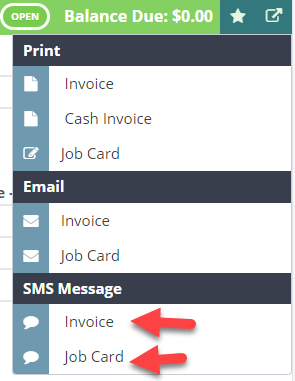
Step 3: Select SMS Invoice or Job Card
- From the dropdown menu, select SMS Invoice or SMS Job Card.

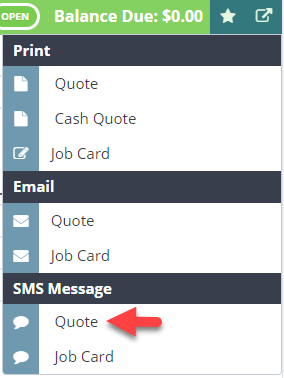
Sending a Quote or Credit via SMS
If you need to SMS a quote or credit instead, first change the invoice type on the invoice:
Then follow the same steps above.

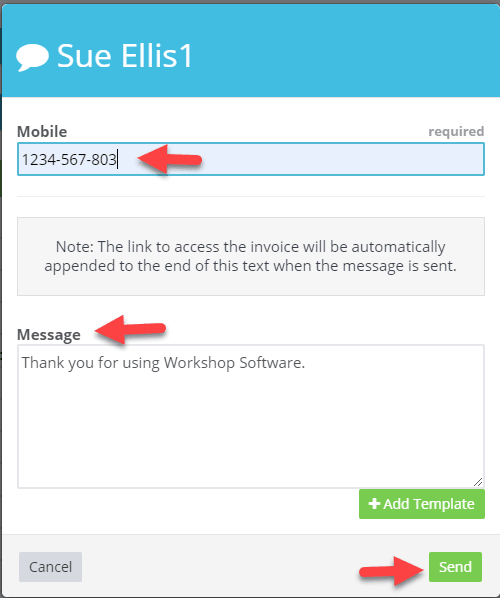
Step 4: Confirm Details and Send
- Verify the customer’s mobile number is correct.
- Write your message in the text field.
- Click Send.
Step 5: Customer Receives the SMS
Your customer will receive an SMS with a link to view their invoice, job card, quote, or credit.
![Workshop Software screen showing to set a pre-filled message, go to settings > messages > sms messages > invoi…” class=”wp-image-13028″>
You can also set up different templates, to use in the SMS message, Go to Settings > Company lists > SMS Templates.