






WorkshopData for Vehicles, Trucks or Motorcycles
WorkshopData is a powerful tool designed to give you instant access to detailed technical information for any vehicle — all within Workshop Software.
With WorkshopData, you can quickly view:
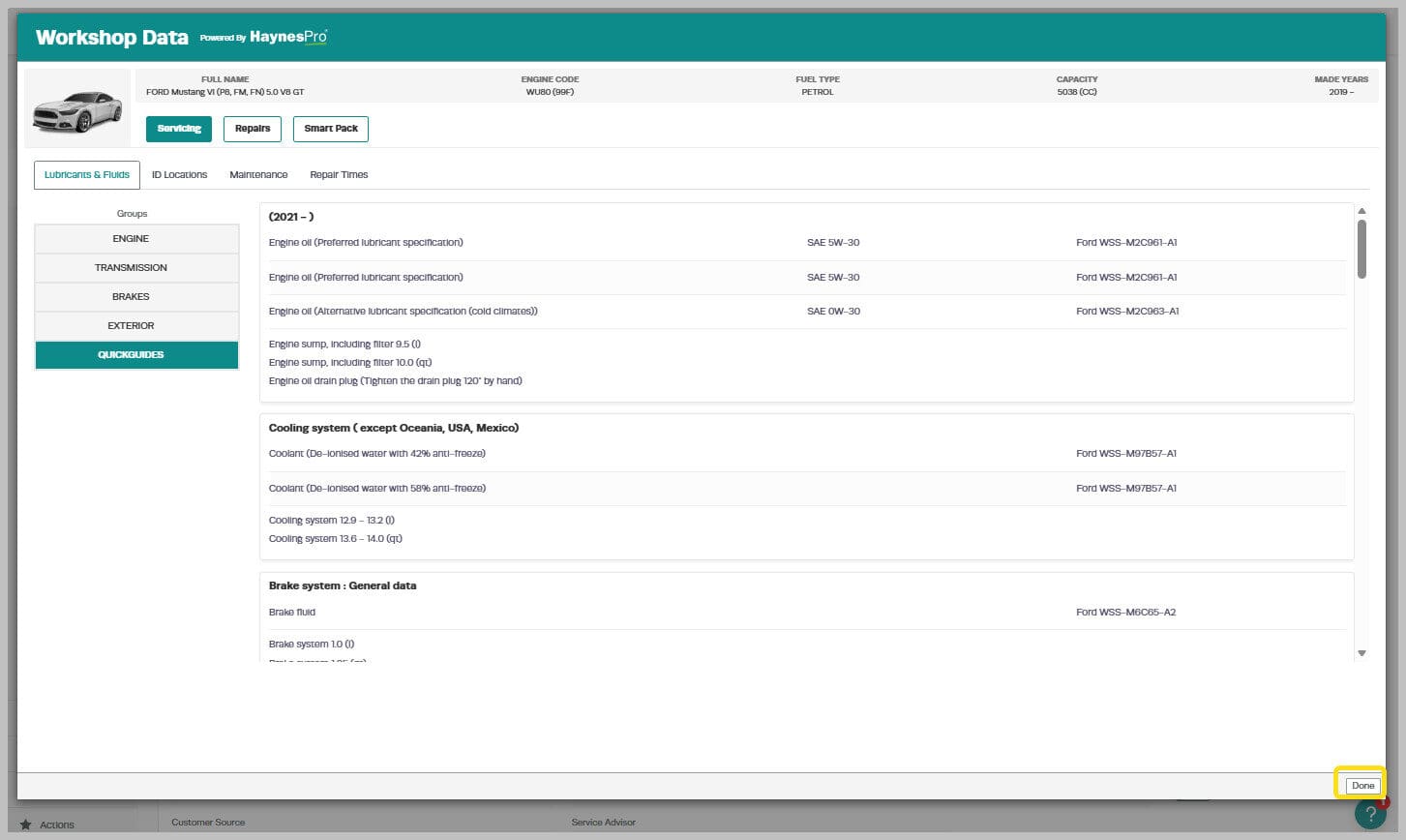
- Lubricants & Fluids specifications
- Identification Locations for key components
- Maintenance Schedules and Service Time
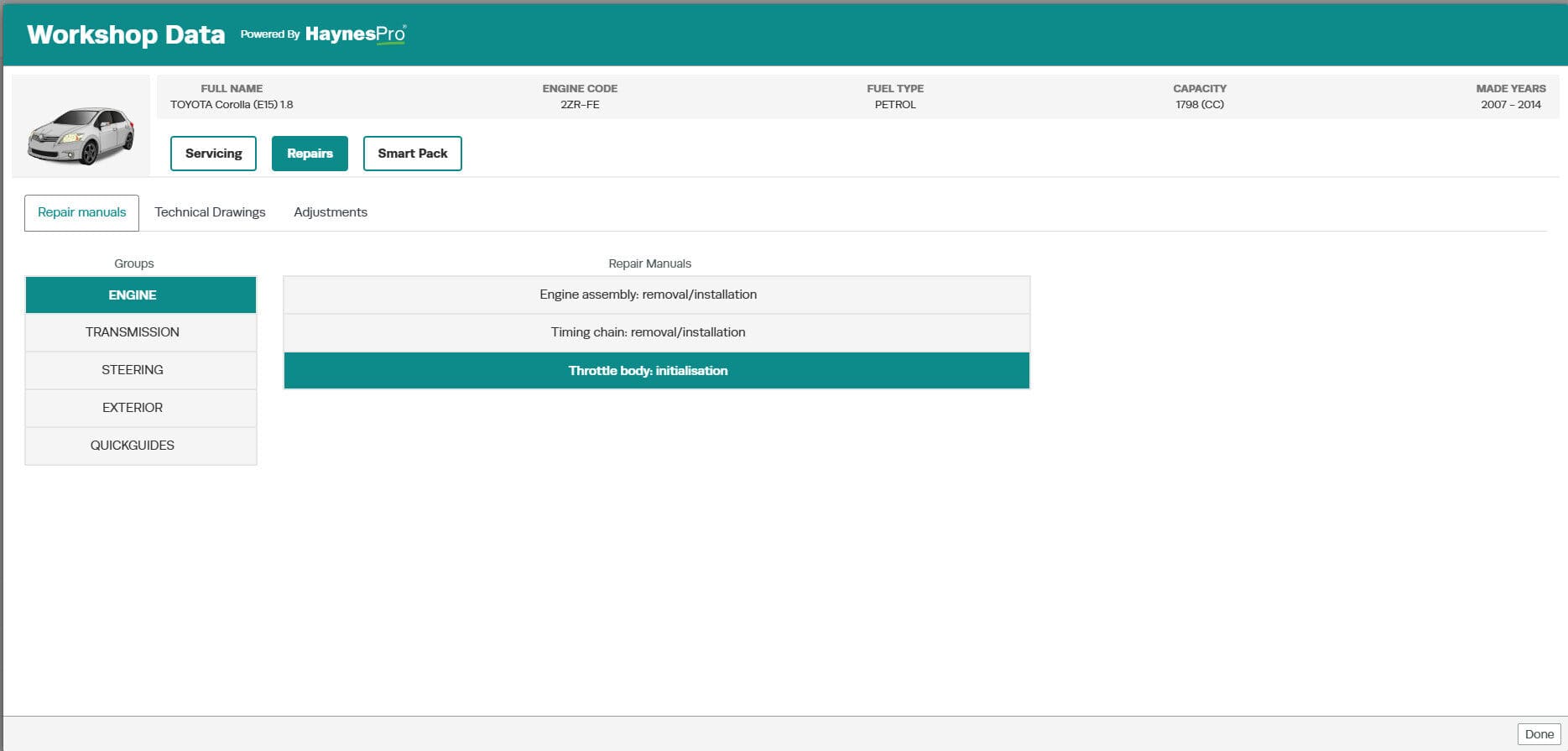
- Repair Manuals and Times
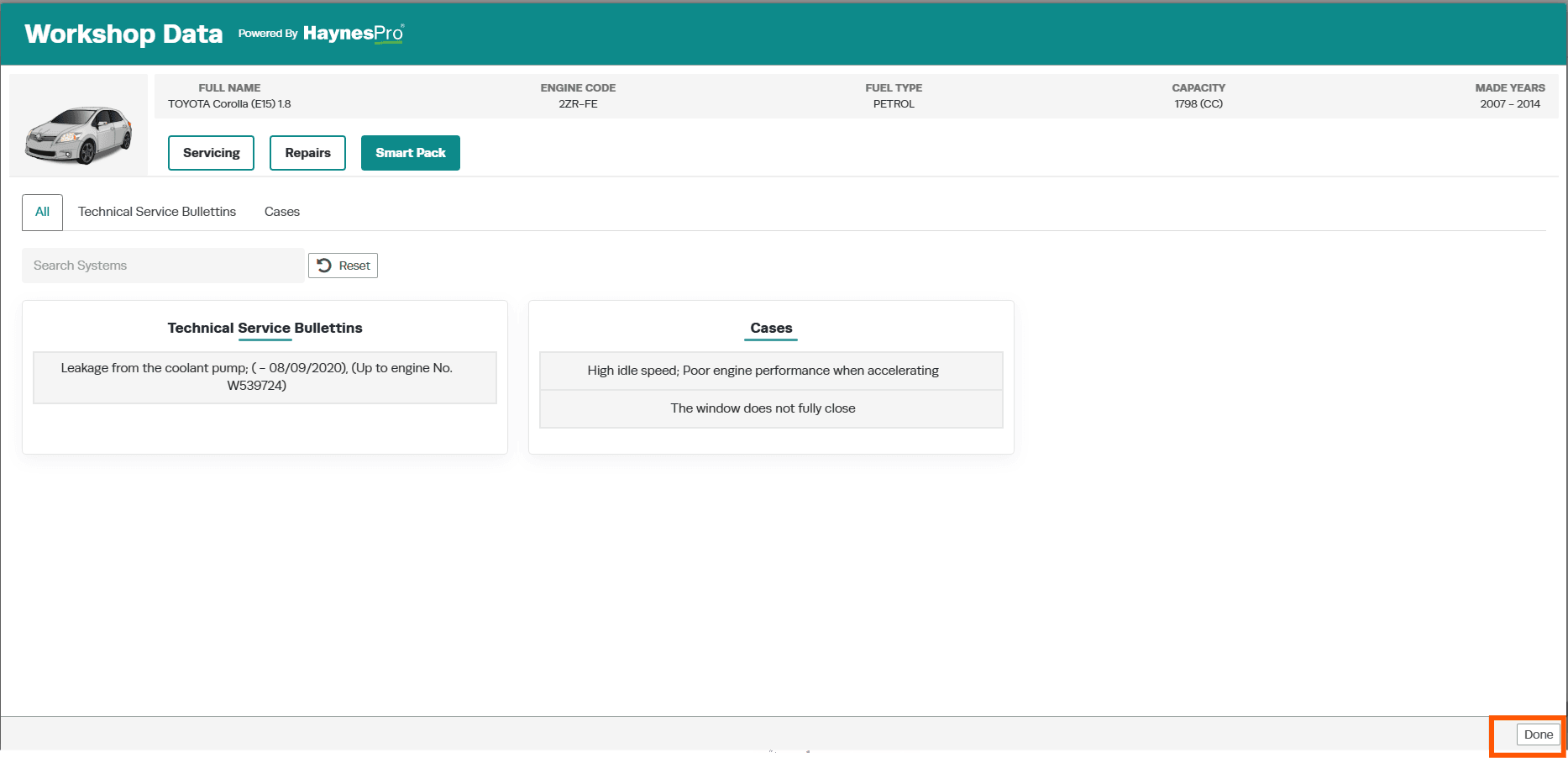
- SmartPACK information including recalls and service bulletins
- Electronics Data including Wiring Diagrams and Fault Codes
This integration allows you to find the exact data you need without leaving Workshop Software or switching between multiple systems. It removes the need for separate subscriptions and helps eliminate errors when searching for the right technical details.
To Access WorkshopData for a Vehicle
- Open the Vehicle Profile for the vehicle you want to view.
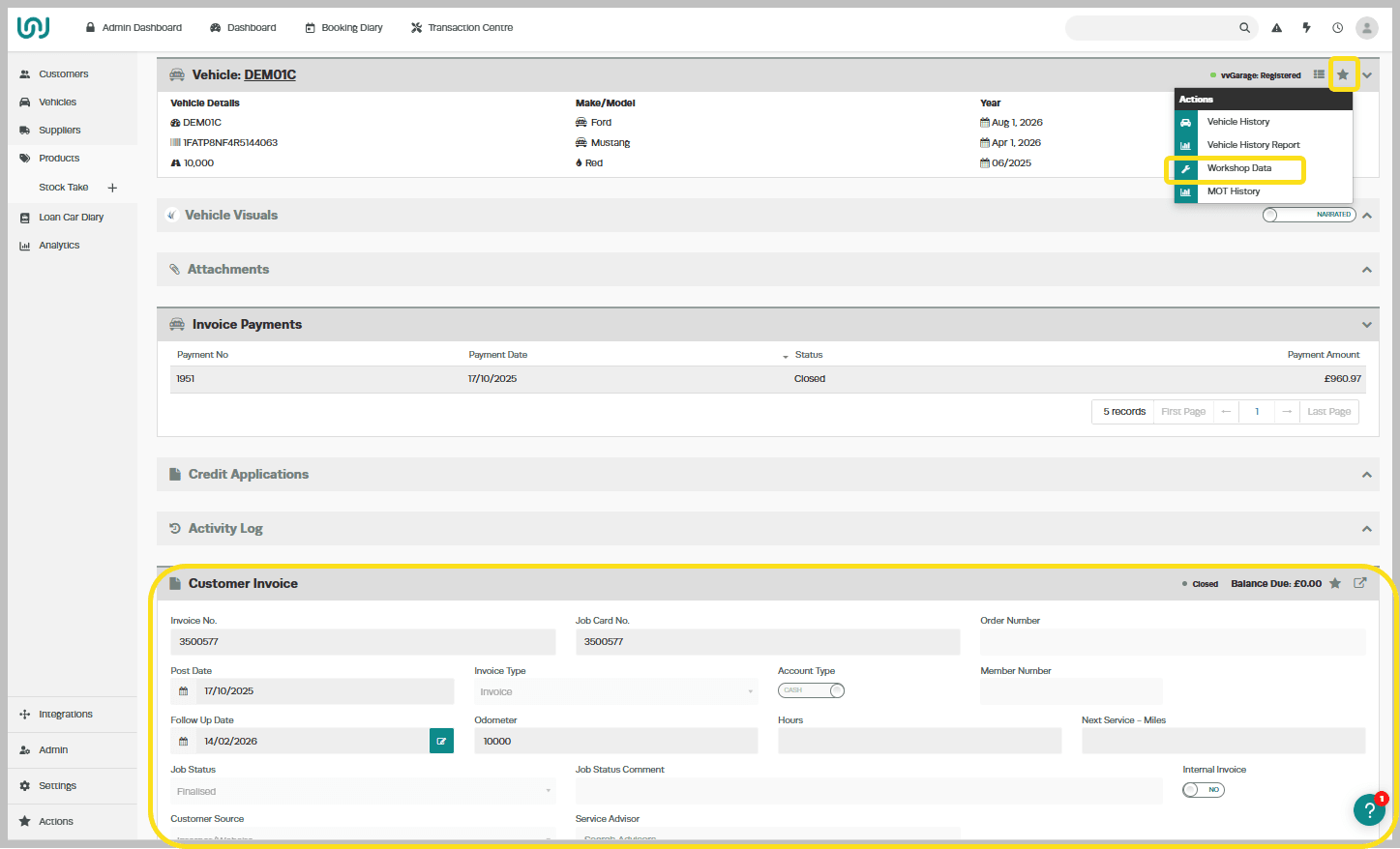
- Click on the Action Star Icon located on the vehicle page.
- Select WorkshopData from the list of available options.
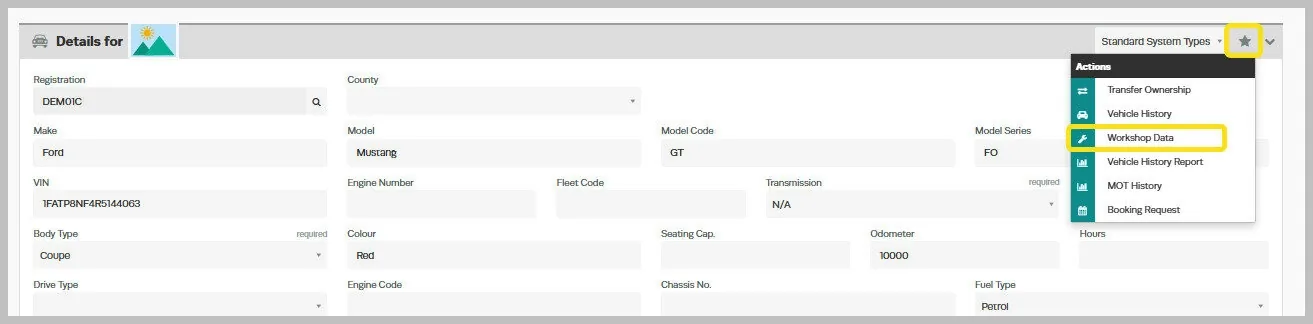
Please Note: If a Vehicle’s Details have enough detail to determine its Model WorkshopData will open directly, otherwise you may see the Search via Make and Model view to select the correct model.
Workshop Software’s Rego Lookup functions are a simple way to complete this information for a compatible Vehicle, this article explains how to use Rego Lookup
Search via Make and Model
You may need to search for a Vehicle using its make and model if details are incomplete or can search for any vehicle by selecting the WorkshopData icon in the top Menu Bar.

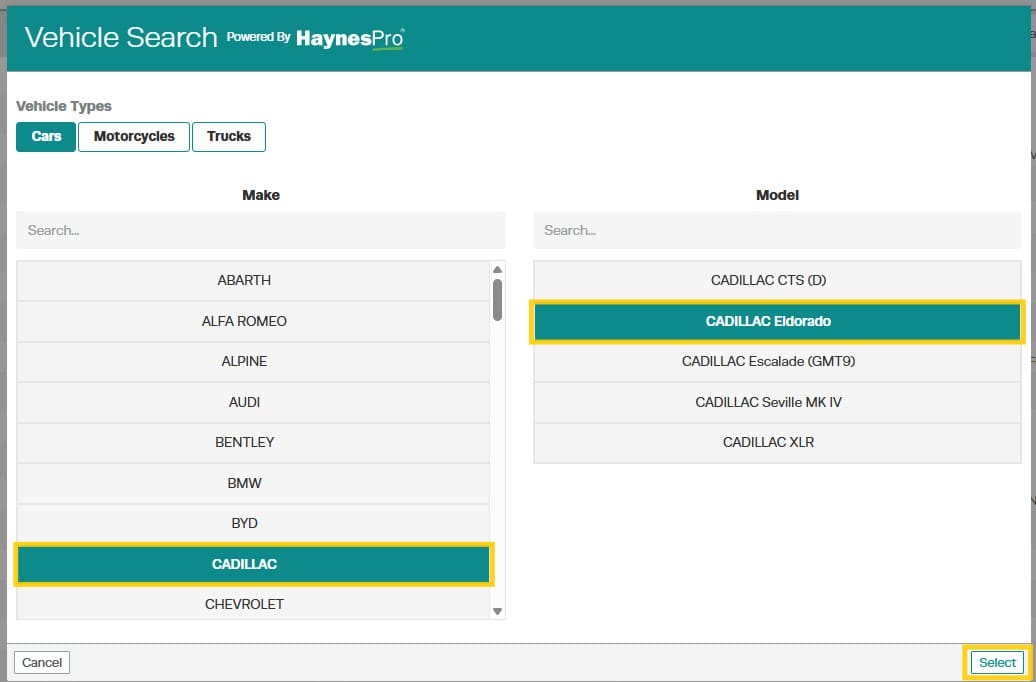
- Select the vehicle type you want to search for: Car, Motorcycle, or Truck.
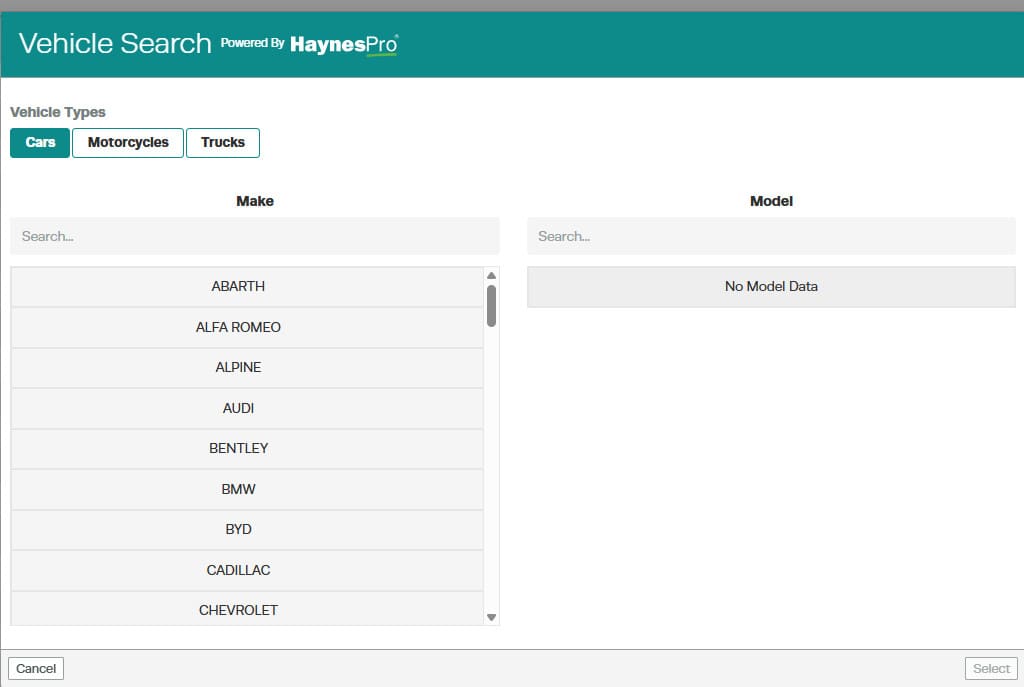
- Select the Make, then choose the corresponding Model from the list.
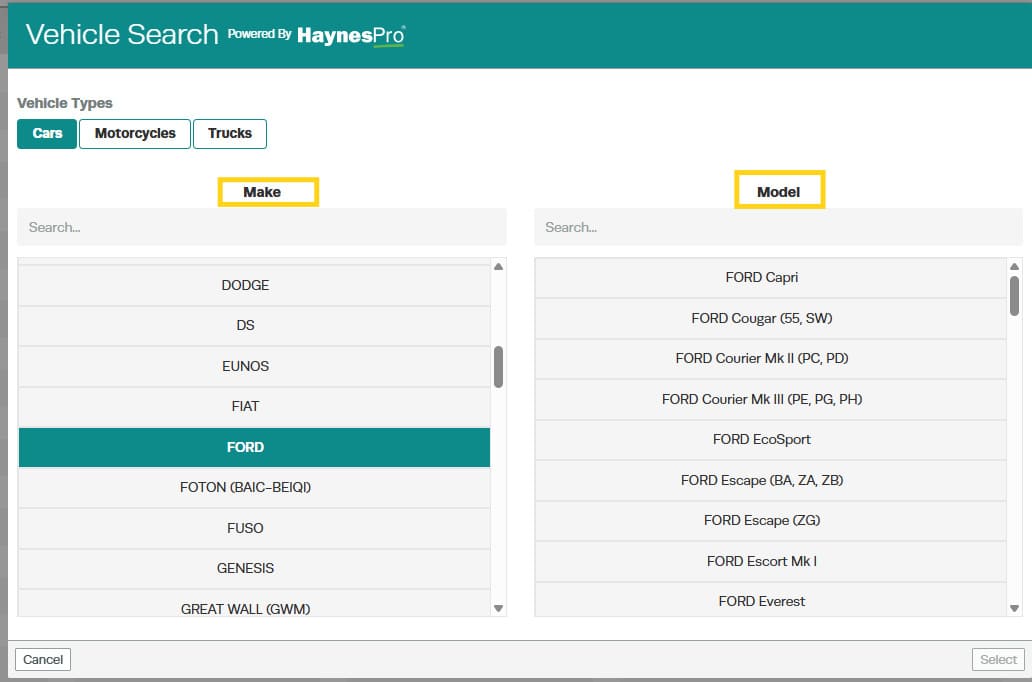
- After selecting the Make and Model, click Select to proceed.
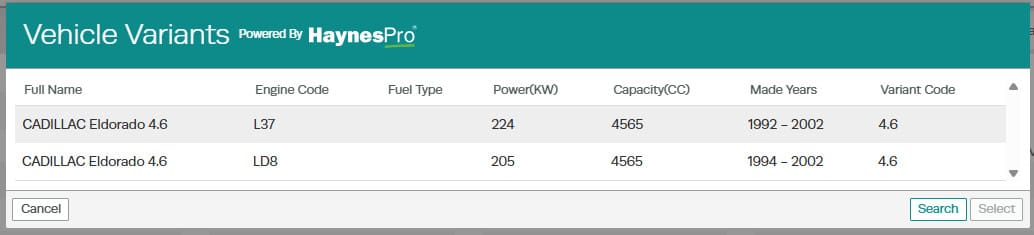
- Choose the variant that matches your vehicle.
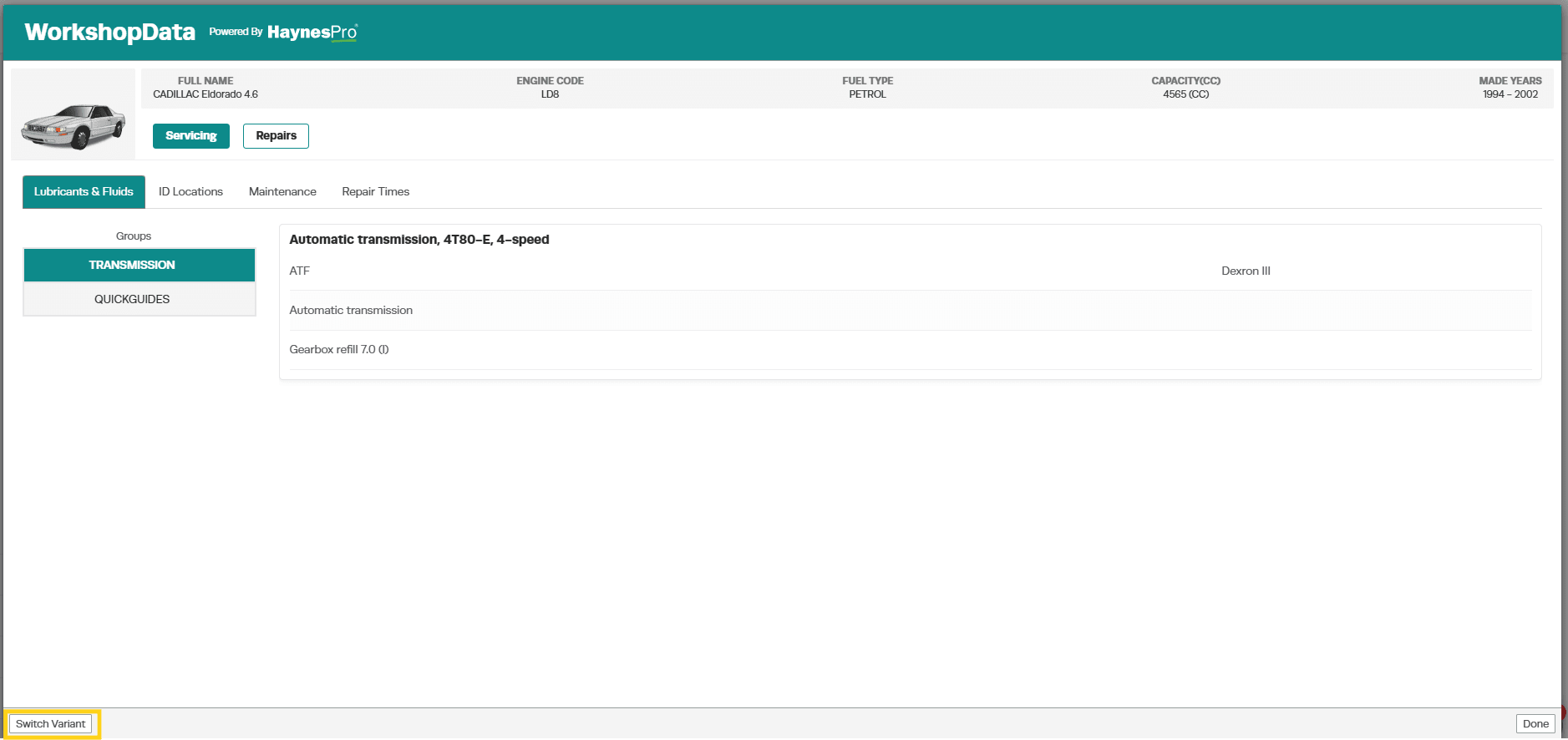
- Select Switch Variant if the displayed vehicle is not the correct one.
Accessing WorkshopData from an Invoice or Job Card
In addition to the Vehicle Details page WorkshopData can also be accessed directly from an Invoice or Job Card. This makes it easy to view technical information for a specific vehicle while working on a job.
Steps to Access WorkshopData
- Open the relevant Invoice or Job Card.
- In the Vehicle Details section, click on the Action Star Icon.
- Select WorkshopData.
Using the WorkshopData Application
Once the WorkshopData application opens, you can explore a wide range of technical information specific to the vehicle you’re currently repairing.
All data is tailored to the vehicle’s model, ensuring the information you view is accurate, reliable, and relevant to the job at hand.
Closing the WorkshopData Application
When you’re finished viewing the information, simply click the “Done” button located at the bottom right corner of the screen.
This will close the WorkshopData window and return you to your Workshop Software page.
Important Note
The data available in the WorkshopData application is provided by HaynesPro, our trusted partner. Availability and detail of information are subject to the data provided by HaynesPro, and may vary depending on the vehicle or dataset.